PlayServs
QA testing instructions
This guide explains how to access and test the PlayServs media player on Titan OS, including its optional three-field sign-in. It is intended for the Titan OS review team.
playservs-titan.pages.dev
The app is hosted as an HTML5 web application. It is a media player and does not itself supply a commercial catalog of audiovisual content.
Option 1 — Demonstration
Note: the availability of the demonstration environment must be verified on the target Titan OS device before QA submission.
Option 2 — Manual login
If the reviewer uses the standard sign-in screen, three fields must be filled:
1010Use the username supplied securely in the Titan OS Partner Portal's QA Information section.
Use the password supplied securely in the Titan OS Partner Portal's QA Information section.
The QA portal has only Username and Password inputs; the additional Server Code field is inside the PlayServs application's login screen. Verify that code 1010 is active for these QA credentials.
Recommended QA checks
- Navigate menus using the four arrow keys, OK/Enter, and Back.
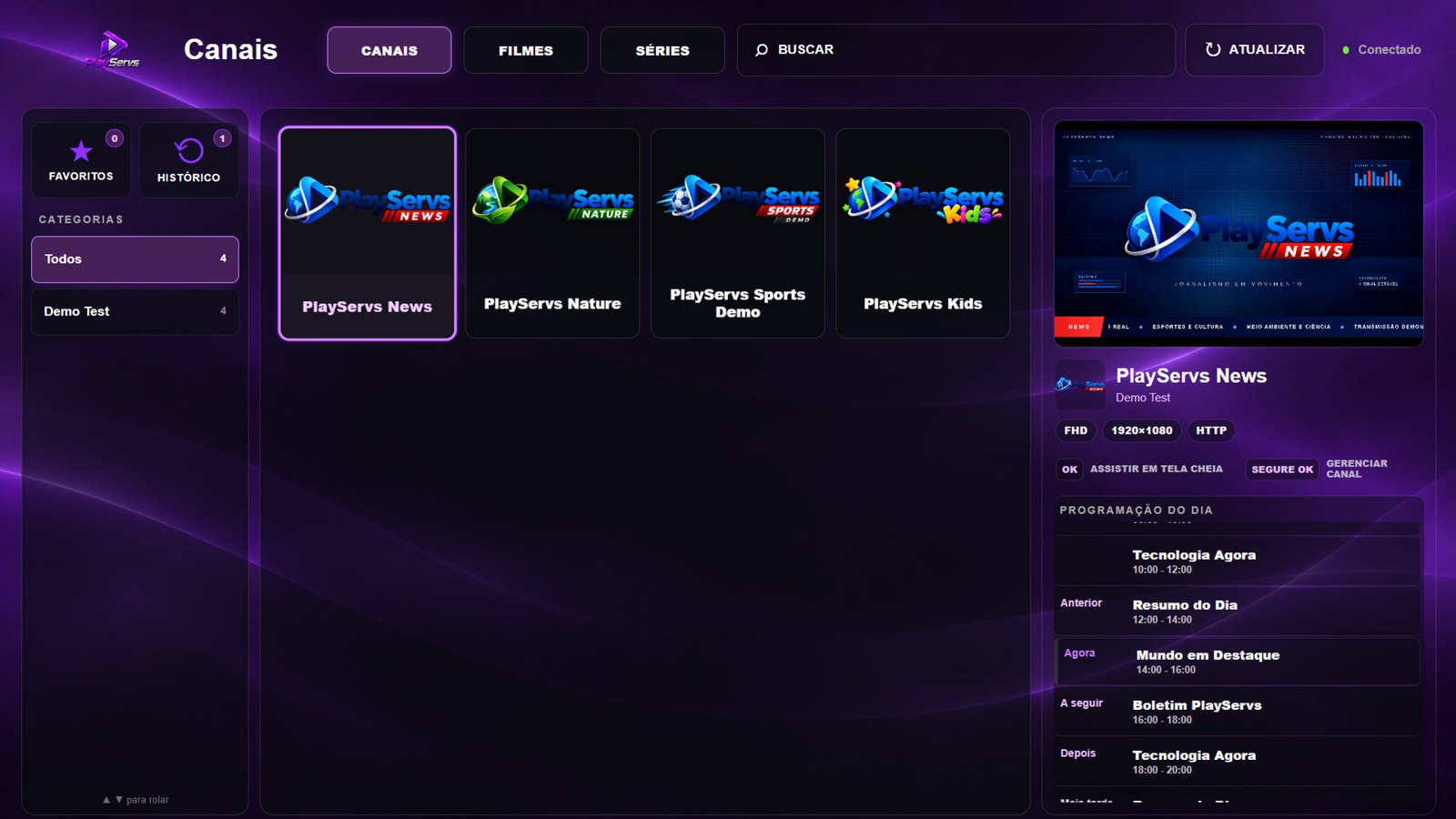
- Open Channels and verify preview/full-screen playback of authorized sample streams.
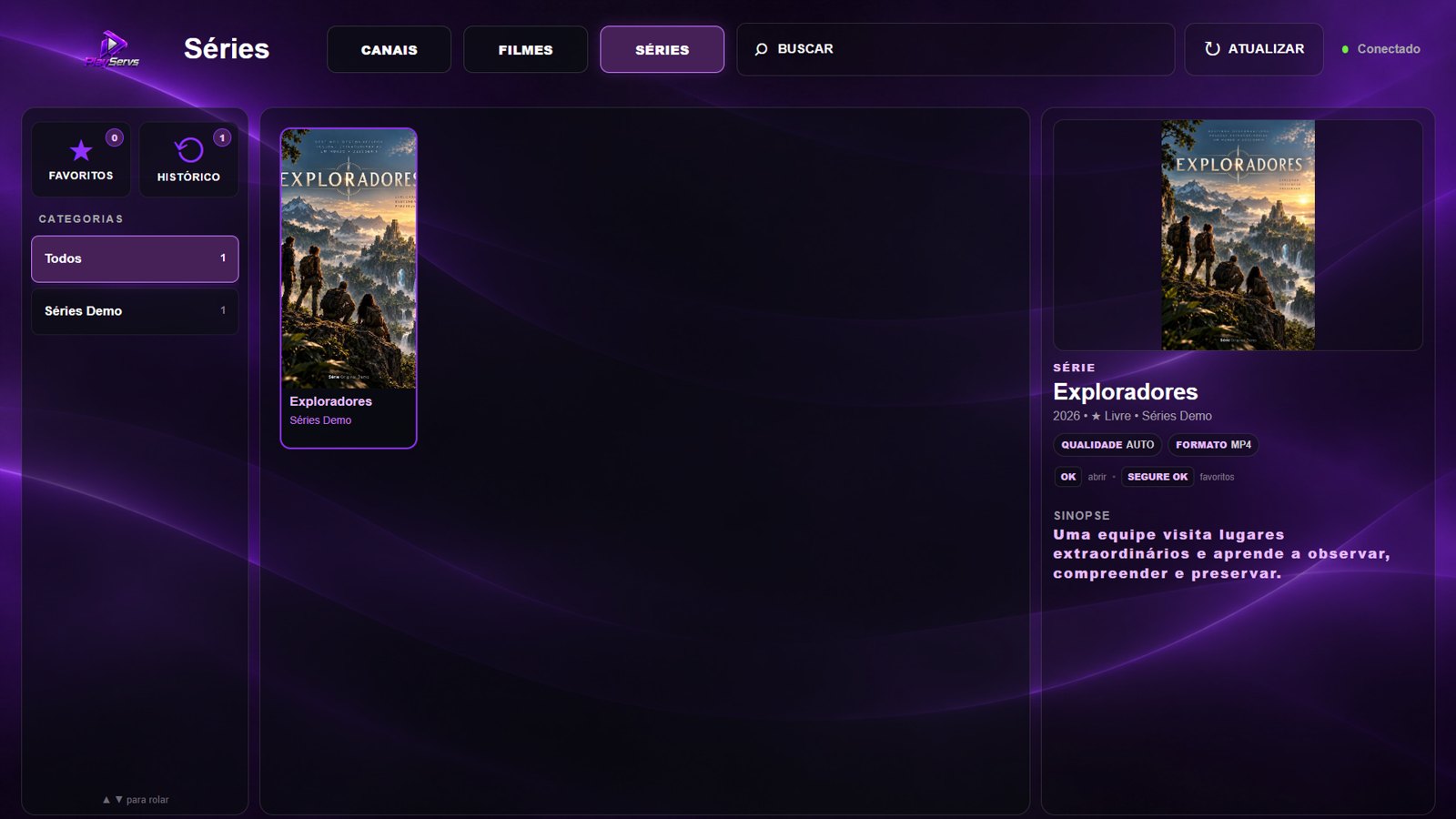
- Browse Movies and Series, including seasons and episodes where test data is available.
- Verify playlist switching, Device ID display, and configuration synchronization.
- Check UI scaling, remote focus visibility, and video/audio behavior on the target device.
Interface reference
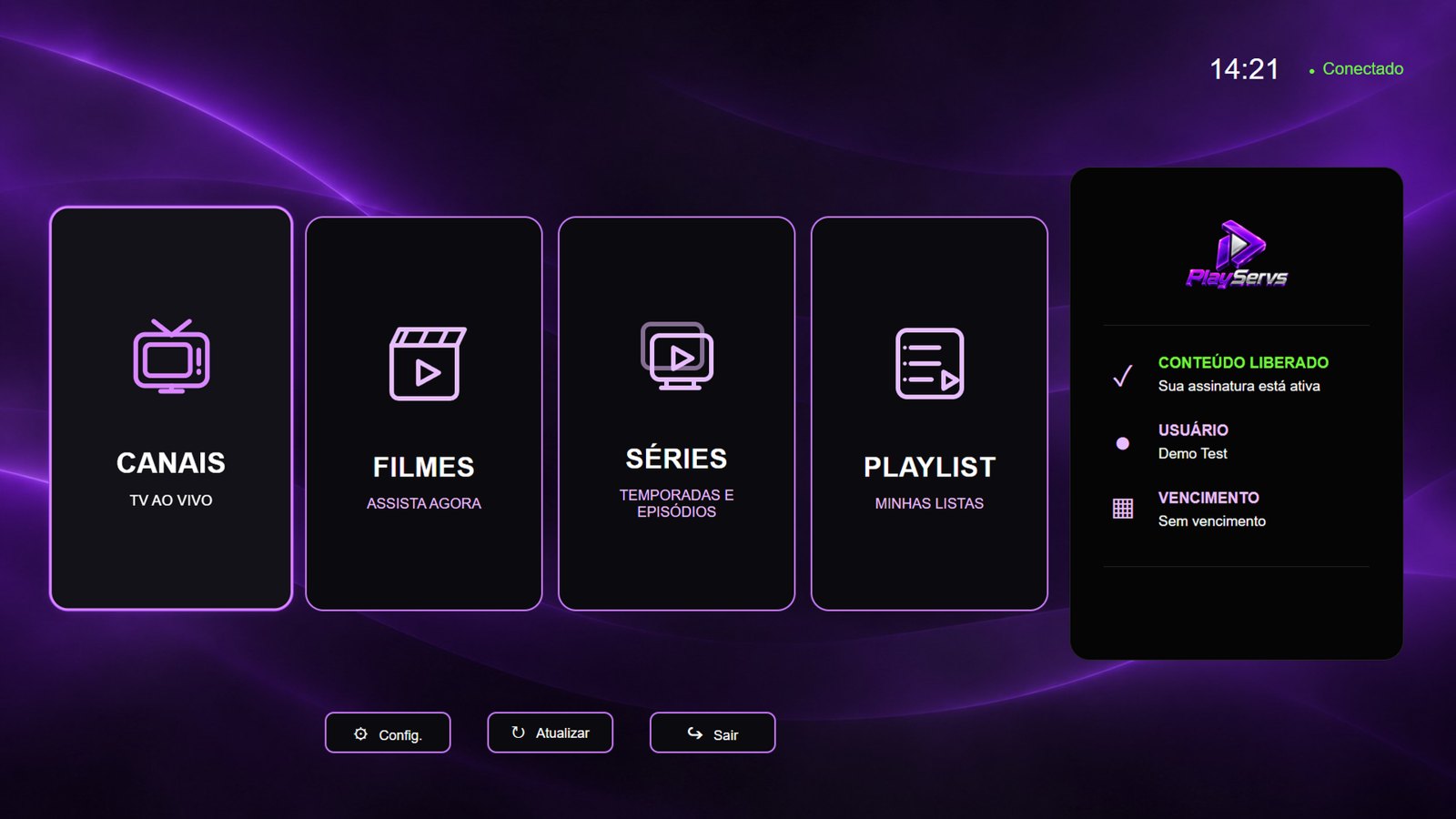
Illustrative screenshots from the PlayServs demo environment. Content availability may change.